Live Translator is a great web tool provided by Microsoft to allow users to instantly and easily translate text and web pages to languages they choose. This tool looks like Translator Bookmarklet with the only difference that this latter is a bookmarklet and Live Translator is not.
You can use Live Translator either as a regular text translator or as a browser for translating entire web pages. To use the first option you need to just copy and paste the text the boxes in the main page but to use the browser translations then you will have more features which are indeed so practical. To translate a whole web page all you need to do is to copy and paste its URL as shown in the video tutorial below. You will then choose the language into which you want to translate the page and then select the type of view you want .
There are actually 4 bilingual view layouts :
1- Top/ bottom : in which you will be able to see the original web page in the first half of your window and the translated version in the second half.
2- Translation with hover original : in which you will see the original version whenver you howver on a word or title
3- Original with hover translation: This is the opposite of the previous one, you will see the translated version of anything you hover your mouse over
4- Side by Side : you will be able to see both the original and translated version of your web page on the same screen one is to the right and the other to the left and whatever you do on one is replicated and translated to the other.
Head over to Live Translator and give it a try
Watch this video tutorial to learn more.
Showing posts with label Chrome extensions. Show all posts
Showing posts with label Chrome extensions. Show all posts
Wednesday, February 15, 2012

Tuesday, February 14, 2012
Microsoft Translator To Translate Anything with A Single Click
Translator Bookmarklet is a great tool provided by Microsoft. As you can guess from its name , this tool allows users to instantly translate the content of any webpage into several languages and all with a single click. There are several add-on and extensions that translate text but this one here is very accurate and I perfer it to many others.

To start using Translator Bookmarklet you need to head over to its main page. and choose your language and then drag the bookmarklet, as shown in the video, to your browser. Whenever you are reading a text that you want to translate , you just choose the laguage to which you want the content to be translated and there you go.
Translator Bookmarklet does not require any software download or registration. It is all free
Watch this video I made to learn how to use Translator Bookmarklet.
To start using Translator Bookmarklet you need to head over to its main page. and choose your language and then drag the bookmarklet, as shown in the video, to your browser. Whenever you are reading a text that you want to translate , you just choose the laguage to which you want the content to be translated and there you go.
Translator Bookmarklet does not require any software download or registration. It is all free
Watch this video I made to learn how to use Translator Bookmarklet.
Thursday, February 2, 2012
Announcify Chrome Extension to Read Text Out Loud
Announcify is a cool Chrome extension that reads out loud every website you are on. This is really a handy add-on for users who feels eye wear after having exposed their eyes to computer for a certain period of time. Let your eyes relax and sit back while Annoucify reads out the text you want.

Announcify is very easy to use and does not require any advanced technology knowledge. Just head over to Chrome Store and click on the install button. Once installed on your browser you can then just click on the Announcify button and there you go.
Announcify is very easy to use and does not require any advanced technology knowledge. Just head over to Chrome Store and click on the install button. Once installed on your browser you can then just click on the Announcify button and there you go.
Tuesday, January 17, 2012
Speechify Add Voice Search to your Search Engines
Speechify is a great Chrome extension. It provides voice search option for most search engines. If you are familiar with Google Voice Search where an icon appears in the search box on Google homepage. Users click on that icon and start speaking out their query and see it being typed in real time without having to touch their keyboards. Speechify extends this service to other search platforms and websites. You will no longer need to type your queries just voice them out and get your results.

The accuracy of this tool is not always 100 percent. You need to say the words correctly and no room for mispronunciation yet it is useful and can do a good job.
" With Speechify you can access many online services and use speech input to search and shop. Search Google, Hulu, Amazon, YouTube, Twitter and many more. "
Head over to Chrome store and give it a try.
The accuracy of this tool is not always 100 percent. You need to say the words correctly and no room for mispronunciation yet it is useful and can do a good job.
" With Speechify you can access many online services and use speech input to search and shop. Search Google, Hulu, Amazon, YouTube, Twitter and many more. "
Head over to Chrome store and give it a try.
Sunday, January 15, 2012
Access your Gmail Offline Using Gmail Offline App
Google has just added some improvements to the Gmail app. With this new update you will be able to install Offline Google mail App in your browser. This add-on will enable you to read, respond and search archived messages without the need for internet connection. You can choose to synchronise up to 31 days og Gmail messages to work with offline. After the start-up the synchronisation will instantly take place anytime Chrome is running.

It goes without saying that you need to have Chrome browser to start using this extension. Just head over to Chrome extension store and click add to chrome to install the add-on. An icon will then appear in the tab pane , click on it and Offline Gmail will load.
It goes without saying that you need to have Chrome browser to start using this extension. Just head over to Chrome extension store and click add to chrome to install the add-on. An icon will then appear in the tab pane , click on it and Offline Gmail will load.
Sunday, January 8, 2012
10 Must Have Chrome Extensions
There is a growing belief that Google Chrome Browser will be the top browser of 2012. This is not a personal opinion but one that is shared by experts in the domain. I have read several articles from different ranked websites such as CNet, Techcrunch, and Wired all of them foresee an upcoming Chrome monopoly of the browsing market.
In the course of the last two years I have tried four browsers namely Internet Explorer, Safari, FireFox, and Chrome and I have never felt content with my browsing experience until I started using Chrome. My words sound like they are uttered by a Google personnel selling out his company`s product. Well I am not , I am just a web 2.0 researcher and an educator like most you here.

I have reasons why I opted for Chrome and you can read all these reasons in my post entitled Reasons Why You Need to Use Google Chrome.
So if you are already using Chrome or if you are convinced to start using this awesome browser then here is a list of the extensions that you can install on your browser to perform different tasks. All these extensions are free and easy to use. I am using all of them and many more but I have selected just those that are really indispensable for your internet surfing.
Here is the list of the Must Have Chrome Extensions
1- InserText
This is a Chrome extension that allows users to save blocks of texts to paste them wherever they want. I found this extension very useful for I used to retype the same information almost everyday when I am accessing certain websites.
2- CC: to me
cc:to me is a cool web application. It allows its users to send notes, pictures and videos from any website right into their email inbox. This is a really handy tool for educators for they can now share content of web pages or just part of it with their students or colleagues instantly and all for free.
3- SendEmail
Send Email is an anonymous emailing service. It allows its users to send emails anonymously. This service is free and down to earth easy. It does not require any sign up or software installation.
4- PrintLiminator
PrintLiminator is a great bookmarklet that allows you to print whatever part of a web page. How many times you want to print just a part of a web page and you end up printing the whole page ? It is not convenient at all but lets thank technology life has been much easier.
5- PrintFriendly
PrintFriendly " cleans and formats web pages for perfect print experience. PrintFriendly removes Ads, Navigation and web page junk, so you save paper and ink when you print. It's free and easy to use. Perfect to use at home, the office, or whenever you need to print a web page."
6- Send Tab
Send Tab lets you save opened tabs to continue reading them say at home or somewhere else or even on another computer or smartphone then all you need to do is use SendTab free service.
7- Explain and Send Screenshots
Explain and Send Screenshots is a Google Chrome extension that lets users capture screenshots of their websites and send them to their friends using Twitter and Facebook or via a generated link
8- Google Chrome to Phone
The Google Chrome to Phone is a cool chrome add-on. It allows its users to send information like text, links, maps and contact numbers to your Android device.This is in fact a great service for Android users
9- Window to Tab
Window to Tab allows Chrome users to merge all the opened tabs in different windows into one single window. This works for people who opens different windows in the same browser.
10- Chrome Vis
Chrome Vis allows its users to highlight a certain portion of a text and magnify it and put it in an easy to read background. The hilighted text is then included in a pop up window over the original window.
In the course of the last two years I have tried four browsers namely Internet Explorer, Safari, FireFox, and Chrome and I have never felt content with my browsing experience until I started using Chrome. My words sound like they are uttered by a Google personnel selling out his company`s product. Well I am not , I am just a web 2.0 researcher and an educator like most you here.
I have reasons why I opted for Chrome and you can read all these reasons in my post entitled Reasons Why You Need to Use Google Chrome.
So if you are already using Chrome or if you are convinced to start using this awesome browser then here is a list of the extensions that you can install on your browser to perform different tasks. All these extensions are free and easy to use. I am using all of them and many more but I have selected just those that are really indispensable for your internet surfing.
Here is the list of the Must Have Chrome Extensions
1- InserText
This is a Chrome extension that allows users to save blocks of texts to paste them wherever they want. I found this extension very useful for I used to retype the same information almost everyday when I am accessing certain websites.
2- CC: to me
cc:to me is a cool web application. It allows its users to send notes, pictures and videos from any website right into their email inbox. This is a really handy tool for educators for they can now share content of web pages or just part of it with their students or colleagues instantly and all for free.
3- SendEmail
Send Email is an anonymous emailing service. It allows its users to send emails anonymously. This service is free and down to earth easy. It does not require any sign up or software installation.
4- PrintLiminator
PrintLiminator is a great bookmarklet that allows you to print whatever part of a web page. How many times you want to print just a part of a web page and you end up printing the whole page ? It is not convenient at all but lets thank technology life has been much easier.
5- PrintFriendly
PrintFriendly " cleans and formats web pages for perfect print experience. PrintFriendly removes Ads, Navigation and web page junk, so you save paper and ink when you print. It's free and easy to use. Perfect to use at home, the office, or whenever you need to print a web page."
6- Send Tab
Send Tab lets you save opened tabs to continue reading them say at home or somewhere else or even on another computer or smartphone then all you need to do is use SendTab free service.
7- Explain and Send Screenshots
Explain and Send Screenshots is a Google Chrome extension that lets users capture screenshots of their websites and send them to their friends using Twitter and Facebook or via a generated link
8- Google Chrome to Phone
The Google Chrome to Phone is a cool chrome add-on. It allows its users to send information like text, links, maps and contact numbers to your Android device.This is in fact a great service for Android users
9- Window to Tab
Window to Tab allows Chrome users to merge all the opened tabs in different windows into one single window. This works for people who opens different windows in the same browser.
10- Chrome Vis
Chrome Vis allows its users to highlight a certain portion of a text and magnify it and put it in an easy to read background. The hilighted text is then included in a pop up window over the original window.
Wednesday, January 4, 2012
Chrome Vis Easily Highlight and Enlarge Webpages' Text
Chrome Vis is a cool extension for Chrome browser users. It is specifically good for the visually impaired people. Chrome Vis allows its users to highlight a certain portion of a text and magnify it and put it in an easy to read background. The hilighted text is then included in a pop up window over the original window.

Chrome Vis is very easy to use and is fairly simple. To start using it you just need to head over to Chrome extension store and install the add-on. Once installed you will be able to use it instantly. This is the best gift you can give to a visually impaired person for this year.
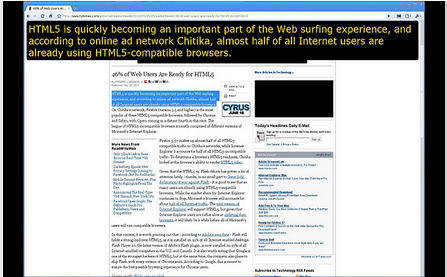
Chrome Vis is very easy to use and is fairly simple. To start using it you just need to head over to Chrome extension store and install the add-on. Once installed you will be able to use it instantly. This is the best gift you can give to a visually impaired person for this year.
Wednesday, December 28, 2011
Merge Several Tabs into a Single Window using Windows to Tabs Extension
Managing tabs is one of the overlooked feature in most browsers and unless you do some search into the world of extensions and add-ons you will never fully benefit from the services of the browser you are using. Today I am sharing with you one of the extensions that should have normally been included in chrome by default. This web extension is called Window to Tab and as its name suggests, it allows Chrome users to merge all the opened tabs in different windows into one single window. This works for people who opens different windows in the same browser. Sometimes you end up having three windows opened and several opened tabs in each one, it takes you time and energy to keep switching between the different windows but Windows to Tabs saves you all the agony and makes it handy for you to see all the tabs in one window.
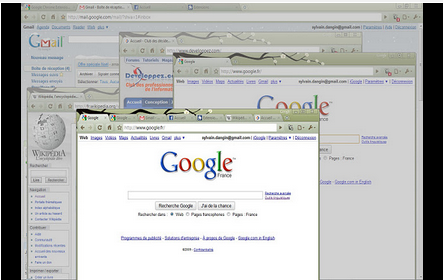
To start using Window to Tabs you need to head over to Chrome Extension Store and install the extension. Now whenever you want to merge tabs into one single window just click on the icon in the navigation bar. Window to Tab is free and very easy to use.
To start using Window to Tabs you need to head over to Chrome Extension Store and install the extension. Now whenever you want to merge tabs into one single window just click on the icon in the navigation bar. Window to Tab is free and very easy to use.
Send Links from Chrome to your Phone using Google Chrome to Phone Extension
The Gogle Chrome to Phone is a cool chrome add-on. It allows its users to send information like text, links, maps and contact numbers to your Android device.This is in fact a great service for Android users. As a matter of fact Android offers the best syncing experience and using Google to Chrome extension will definitely make your Android browsing experience richer and much more convenient.
To start using Google to Phone extension you need to head over to Chrome esxtensions gallery and install the add-on on your browser. You will also need to install the Chrome to Phone app from the Android market. Once you installed both of the tools you can then instantly and easily start sending in information from your chrome browser to your Android simply by clicking on the button installed on your browser. You access and view the contextual information you sent in your phone's apps. For instance , YouTube links will automaticcally launch on YouTube app, and maps links will open in Google Maps app. This Android feature requires Froyo ( Android2.2) to work.
Watch this video to learn more about Google to Chrome Extension
To start using Google to Phone extension you need to head over to Chrome esxtensions gallery and install the add-on on your browser. You will also need to install the Chrome to Phone app from the Android market. Once you installed both of the tools you can then instantly and easily start sending in information from your chrome browser to your Android simply by clicking on the button installed on your browser. You access and view the contextual information you sent in your phone's apps. For instance , YouTube links will automaticcally launch on YouTube app, and maps links will open in Google Maps app. This Android feature requires Froyo ( Android2.2) to work.
Watch this video to learn more about Google to Chrome Extension
Tuesday, December 27, 2011
Capture, Edit, and Share your Screen Uisng Explain and Send Screenshots for Chrome
Explain and Send Screenshots is a Google Chrome extension that lets users capture screenshots of their websites and send them to their friends using Twitter and Facebook or via a generated link.This is in fact a useful tool for those who love to share important portions of what they see or read on their web pages . Explain and Send Screenshots will help you capture the part of the page you want and add your own explanations with the use of arrows, lines, circles and text.

To start using Explain and Send Screenshots you need to head over to Chrome extension gallery and install the add-on. Once installed you can then start sharing your screenshots very easily. Just click on the Expand and Send Screenshots button on your browser and a new tab will automatically be opned with the web page you want to share. Crop out the portion you want to share and use the editing tool bar to ad arrows and text then send it as a post on your Facebook and Twitter .

Watch this video to see Explain and Send Screenshots in action.
To start using Explain and Send Screenshots you need to head over to Chrome extension gallery and install the add-on. Once installed you can then start sharing your screenshots very easily. Just click on the Expand and Send Screenshots button on your browser and a new tab will automatically be opned with the web page you want to share. Crop out the portion you want to share and use the editing tool bar to ad arrows and text then send it as a post on your Facebook and Twitter .

Watch this video to see Explain and Send Screenshots in action.
Send Tab Send Opened Tabs to Different Computers or Mobile Devices
SendTab is a great web application to help you send tabs to different computers and devices. Has it ever happened to you that you opened a webpage in your office or classroom and suddenly felt like you needed to leave immediately because of a certain circumstance and wondered what would you do with the opened web page that you did not finish reading? Now with SendTab you no longer need to worry ,whenever it happens that you want to save opened tabs to continue reading them say at home or somewhere else or even on another computer or smartphone then all you need to do is use SendTab free service.

To start using SendTab you need to register with them and open your free account once done you can then download the bookrmaklet into your browser tool bar or simply install their extension. You add all the devices you want to include in your netwrok. Now whenever you want to share a tab simply click on the bookmarklet and choose the device you want to send the tab to. This could be your personal computer, your co-workers' or your phone. To share a tab on your iOS devices will cost you 99 cents for the app.
Some snapshots of the app


To start using SendTab you need to register with them and open your free account once done you can then download the bookrmaklet into your browser tool bar or simply install their extension. You add all the devices you want to include in your netwrok. Now whenever you want to share a tab simply click on the bookmarklet and choose the device you want to send the tab to. This could be your personal computer, your co-workers' or your phone. To share a tab on your iOS devices will cost you 99 cents for the app.
Some snapshots of the app

Sunday, December 25, 2011
PrintFriendly Easily Select Parts of A Web Page to Print
PrintFriendly is a great add-on that lets users print selected parts of a web page. It resembles the other tool I covered earlier called Printliminator. Using these extensions on your browser enables you to save so much of paper and time. You will be able to print just what interests you and not the whole pages.

PrintFriendly " cleans and formats web pages for perfect print experience. PrintFriendly removes Ads, Navigation and web page junk, so you save paper and ink when you print. It's free and easy to use. Perfect to use at home, the office, or whenever you need to print a web page."
PrintFriendly " cleans and formats web pages for perfect print experience. PrintFriendly removes Ads, Navigation and web page junk, so you save paper and ink when you print. It's free and easy to use. Perfect to use at home, the office, or whenever you need to print a web page."
To start using PrintFriendly you need to head over to Its main page and drag the bookmarklet to your browser bookmark toolbar. Whenever you want to print something you just click on that bookmarklet and that's it.
PrintFriendly works on the popular browsers like Internet Explorer, Chrome, Safari and Firfox. Here is a snapshot of the instructions of how to use this add-on.
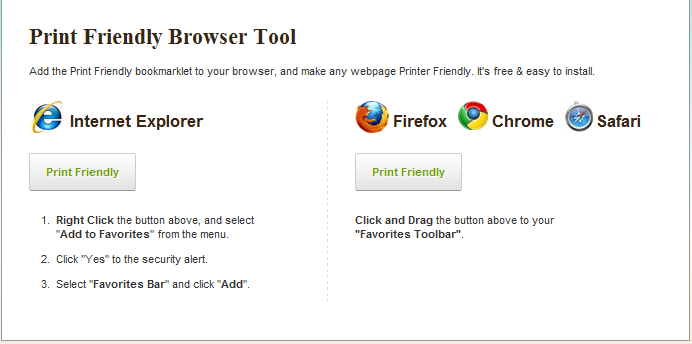
To learn more about PrintFriendly you need watch this video
Printliminator Print Whatever Part of a Web Page
PrintLiminator is a great bookmarklet that allows you to print whatever part of a web page. How many times you want to print just a part of a web page and you end up printing the whole page ? It is not convenient at all but lets thank technology life has been much easier.

Printliminator is a bookmarklet that you can install on your browser . It is fairly simple and easy to use. Just drag and drop the button and there you go. Once you found a part of a web page you want to print out then you just click on the bookmarklet and circle the part you want , you can even eliminate graphics and reformat the print styling and when you are done you click on print and that's it.
Printliminator is a great tool to save you paper . It works on Chrome, Safari, and Firefox.
Watch this video to learn more about Printliminator
Printliminator is a bookmarklet that you can install on your browser . It is fairly simple and easy to use. Just drag and drop the button and there you go. Once you found a part of a web page you want to print out then you just click on the bookmarklet and circle the part you want , you can even eliminate graphics and reformat the print styling and when you are done you click on print and that's it.
Printliminator is a great tool to save you paper . It works on Chrome, Safari, and Firefox.
Watch this video to learn more about Printliminator
Sunday, December 18, 2011
Send Anonymous Emails using The Free Send Email Service
Send Email is a cool service. I just learnt about it today and want to introduce it to you in case you do not know it. Send Email is an anonymous emailing service. It allows its users to send emails anonymously. This service is free and down to earth easy. It does not require any sign up or software installation.
I am including Send Email here in my blog because there are many teachers who do not prefer to use their email addresses with their students, well at least some have told me so. Now they can use this service to do the same job their 'official ' email address would normally perform. No more excuses for not integrating technology into education .

How can I get started using Send Email ?
It is very easy to use. Just head over to Send Email main page and scroll down . Fill in the three boxes as shown in the picture below. Provide the email address to which you want to send anonymous email, write the subject and then proceed to the body of your email. When you finish , write the captcha and click send and that's it.

I am including Send Email here in my blog because there are many teachers who do not prefer to use their email addresses with their students, well at least some have told me so. Now they can use this service to do the same job their 'official ' email address would normally perform. No more excuses for not integrating technology into education .
How can I get started using Send Email ?
It is very easy to use. Just head over to Send Email main page and scroll down . Fill in the three boxes as shown in the picture below. Provide the email address to which you want to send anonymous email, write the subject and then proceed to the body of your email. When you finish , write the captcha and click send and that's it.
Email yourself Content from Web Pages Using CC: to me
cc:to me is a cool web application. It allows its users to send notes, pictures and videos from any website right into their email inbox. This is a really handy tool for educators for they can now share content of web pages or just part of it with their students or colleagues instantly and all for free. I have tried cc: to me and found it great and therefore I am recommending it to you.

How can I get started using cc:to me ?
It is very easy to use and does not require any advanced technological skills.All you need to do is head over to cc:to me and sign up for a free account. The service is still free till this moment and pro accounts will soon be available too. There is a bookmarklet that you can drag and drop into your browser. Whenever you stumble upon a good article and you want to share part of it be it a video, text, image or all of them just drag and drop the part you want and that's it. Yes it is that easy , watch this video to learn more.
Friday, December 9, 2011
InserText Inser Preselected Text with just One Click
Today I am going to talk about a very important tool called InsertText. This is a Chrome extension that allows users to save blocks of texts to paste them wherever they want. I found this extension very useful for I used to retype the same information almost everyday when I am accessing certain websites. For instance you would always type your email address each time you want to register in an website or the like. You would also look for your email signature to annex it to a certain posting, these actions can now be done easily and with just one click. All you need to do if you are working on Chrome browser ,which I would advise you to use because of the several advantages it has over other browsers, is to install InsertText add-on and whenever you want to insert a chunk of saved text simply right click where you want to insert it, open the InsertText menu and select the text to insert. Yes it is that easy.

Some features of InsertText
Here is a list of some of the best features that InsertText offers to its users:

To installt InsertText you need to head over to Chrome Extension Store and click on download button.
Some features of InsertText
Here is a list of some of the best features that InsertText offers to its users:
- It is free
- It is easy to use
- It lets you create several blocks of text and save them for later use
- It allows you to paste the saved text with one click
- You can use either plain text or rich text format
- It lets you create multiple folders to organize different types of text
To installt InsertText you need to head over to Chrome Extension Store and click on download button.
Subscribe to:
Posts (Atom)