Showing posts with label organizing tools. Show all posts

Sunday, January 29, 2012

All My Books A Desktop Library for your Ebooks

All my Books is a personal data base software that allows its users to store, and organize their ebooks right in their desktop.Internet is ripe with free ebooks and PDFs and you might have already amassed a number of them in your hard drive. The thing is when you do not organize these ebooks they get stored in places you might easily forget. Sometimes you want to check an ebook that you have installed somewhere on your computer but feel lazy to go around  looking for it. With All my Books, every ebook will be available in clean organized shelves that will pop out at your eyes the moment you  open the software.


all my books


All my Books is a kind of a library on you desktop where you can organize your ebooks.The only thing with this software is that it did not come completely free and you will have only a 30 days trail period after which you need to pay $39 to get it. I think if you like the service and have the means to afford it then It is really worth it.

To start using All my Books you need to head over to its main page and download the software. Once installed you can then start uploading your ebooks from your hard drive.For every ebook you uploaded , you will need to provide its title, binding, number of pages, etc.You can even add your own categories and fields to make it easy for you to organize your data.When you want to look for an ebook you have already stored in All my Books , you will just type in its title and there you go.

If you are looking for free educational ebooks then check out The List of Websites where to Download Free Edooks.

Tuesday, January 24, 2012

474747 A Start Page and Directory of Best Websites

474747 is a great website I discovered today. It is not about math as you might have initially thought, it is like a startpage. Not knowing what a start page is ? This is a page where users aggregate all their favourite websites that they access on a daily basis so that it becomes easy for them to consult their websites without having to type in the URLs each time they want to visit them. A startpage is a must have service for heavy internet users like me. It saves you time and makes your online surfing much more easier. There are many online services that provide start pages and among these ones Google. I am personally using iGoogle to manage and organize the websites I constantly access all in one single page.


474747 is a start page service that allows users to have a quick access to a sort of directory of online websites at a simple click. It arranges websites in different categories and organizes them into grids. There is evern a " choose country " option where you can select your nation and start getting country-specific suggestions of websites to use.


474747 features a list of categories such as : Mail, Social, News, Shopping, Banks, Travel, Business, Estates, Sports,Jobs, Phones, Government, Health , Weather .....and the list is too long. There is also a Google Search bar at the top of the page that you can use to seach directly into Google.

Head over to 474747 and give it a try.

Wednesday, August 3, 2011

SideVibe – Simplify the Web and Save Time

SideVibe is a great website for educators. It allows its users to create “ web based online activities, pose questions or even host threaded discussions that can literally float over any Web page.”These activities are stored in the website database so that users can access them anytime they want using the Feedback Tools.


SideVibe is a great site for teachers. They can use it as a source of educational content where students learn in the appropriate context. Contextualization is one of the biggest favors of SideVibe and i think if used properly, it can be a huge incentive for learners to achieve more.

Some features of SideVibe

Here is a list of the main features that SideVibe offers to its users:
  • It has a free basic version with less features than the premium

  • It is easy to use

  • It has an intuitive interface

  • It allows users to create online activities

  • You can create as many vibes as possible

  • You can control who views your vibes

  • Teachers need to sign up for an account and give the entry code to up to 50 students ( free version)

  • You can create as many Courses and Topics  as you like on the Course area of your SideVibe homepage.

  • It lets you printout nice PDF reports


How does Side Vibe work ?

Here are two video tutorials to show you how this tool can be used :
Here is the student companion tutorial
Here are some links to help you learn what Student Companion is all about :
  1. What is the SideVibe Companion?

  2. How do I create a SideVibe?

  3. How do my students access my SideVibes?

  4. Can I create different groups of students?


If you want to learn more about this tool then here are some links to help you do so:
  1. How do I create a SideVibe account for myself?

  2. How do my students create SideVibe accounts?

  3. Is SideVibe secure?

  4. How many SideVibes can I create?

  5. How much does SideVibe cost?

If you want to discover other useful tools that you can use with your students then i invite you to check :

Sunday, July 24, 2011

The best Free Organizing Tools

Here is  list of the best organizing web tools. You can use any of the mentioned applications with your students in your classroom. They are all explained in a very simple and easy step by step tutorial and most of the cases a video illustration is also provided at the end of some posts.Fell free to bookmark and share the list with your friends and colleagues.


I : Organizing Tools:

Wednesday, June 22, 2011

Compare and Contrast map – Free Graphic Organizer

Compare and Contrast map is a great interactive graphic organizer. It is offered for free from Read Write Think to whom i channel my deep gratitude for their fantastic resources. Compare and Contrast  Map, as its name suggests, is a tool that allows students to draw their differences and similarities about anything they want , be it characters in a text , political system of countries , or simply state what they like and dislike about a lesson plan. What i like the most about this tool is that it lets you share the finalized work with your students or friends using email options which was not the case with some of the graphic tools i talked about here earlier and that offer just the printing options.


How can i get started using Compare and Contrast ?

Head over to Compare and Contrast main page
Click on get started and a pop up window will be displayed

Fill in the info requested
and click on continue
Keep filling in the boxes provided for you when you click on continue till you are done


Then click on share and select email option

Applications of Compare and Contrast in education

As i have already mentioned earlier ; this tool is really a great helper for educators. It will allow them to draw character sketches including similarities and differences within a certain passage or novel. It can also be used to develop an outline for one of three types of comparison essays: whole-to-whole, similarities-to-differences, or point-to-point
That’s it about Compare and Contrast Map – Free Graphic Organizer.

Character Trading Cards – Explore and Create Characters Easily

Character Trading Cards is another great education tool that educators can use with their students for free. It is thanks to Read Write Think that we have these awesome collection of creative tools at our hands. Character Trading Cards is a tool that allows students to explore a character in a book and organize info around it into a beautiful outline. Students will love it so much i am sure for it is very easy to use and offers some already premade backgrounds for you to fill in.


How can i get started using Character Trading Card ?

Head over to Character Trading Card main page
Click on Get Started and a pop up window will be displayed where you will have to fill in your name , the character’s name and story title just like i did in this screenshot and then click ok


Now fill in the info about :
1 – description :
  • setting

  • physical features

  • personality

2 – Insights :
  • thoughts

  • feelings

3 – development :
  • the character’s problem

  • The character’s goal

  • Outcome

4 – Statements and Actions :
  • what is the most important things the character says ?

  • What is the character’s most important action ?

  • How does the character get along with other characters ?

5 – My Impressions
  • What do you like most about this character ?

  • What do you dislike most about this Character ?

  • Who does this character remind you of and why ?


After you have answered and filled all the requested forms then you can press on print to get your printout .

Applications of Character Trading Cards in education

Character Trading Cards is a very important tool in education. It can be used for reading activities, students read a short passage then they try to fill in the characters info using this handy tool to demonstrate their literacy knowledge and skills . It can also be used as a prewriting activity or with narrative stories. Students hold out their character cards and prompt others to write a story about them or they can use it to play guessing games. It is so much fun for students .
That’s it about Character Trading Cards – Explore and Create Characters Easily.

Bio Cube: Summarize a person’s biography easily

Bio Cube is another educational tool that is offered for free by Read Write Think. It allows students to summarize a person’s biography into a neat and well organized sort of outline. It has an intuitive interface where info are organized into different categories. The final printout you get after you are done with customization can be folded into a fun cube shape that can be used for future reference.


How can i get started using Bio Cube ?

Head over to Bio Cube main page
Click Get started, a popup window will be displayed

Now fill in the requested information , click on any number to rotate the cube

  1. person’s name , time and place
  2. Personal background
  3. Personality traits
  4. Significance
  5. Biggest obstacle
  6. Important quotation
Just don’t forget to print out your cube for it will not be save online

Applications of Bio Cube in education

Bio Cube is extremely important in education. It can have several uses and the first one of them is to allow students to make interesting autobiographies about persons they study. They can also use it as a pre-reading or pre-writing activity to brainstorm ideas about a certain figure. Students can also use it to write their own autobiography  and share cubes with each other. With Bio Cube students will be able to effectively synthesize what they have learnt.
That’s it about Bio Cube: Summarize a person’s biography easily.

Alphabet Organizer – Organize and Summarize Alphabetically

Alphabet Organizer is a great tool offered for free by Read Write Think website. It allows its users to sort out words or list of terms using the alphabetical order. You can organize items under a specific letter or even go further than that to create an alphabet book with words for each letter of the alphabet. This interactive tool enables students to print an alphabet chart or pages for an alphabet book.


How can i get started using Alphabet Organizer ?

Head over to Alphabet Organizer main page
Click on Get Started

A pop up window will be displayed

now enter your name and title and click on ok
now select from the options you have on this new window ,

remember if you want to disable the sound that clicks make just click on the mic icon on the top of the page
Now select letter to add words to your alphabet organizer and click continue

When you are done then choose your printing options


Applications of Alphabet Organizer in education

Alphabet Organizer is a great educational tool. It has several applications for classroom teaching. Learners can use it to learn about new words , they can also use it to create sort of little dictionary like notebook where to gather all the new words they have seen during the school year and then share them with each other. Elementary and higher students can use it for brainstorming and discussion of background knowledge about a topic.
That’s it about Alphabet Organize – Organize and Summarize Alphabetically.

Tuesday, June 14, 2011

Pegby – Track and organize your tasks easily

Pegby is a great task management tool for educators. It allows its users to get their tasks and assignments organized just in the way they like. The ease and simplicity it offers is what makes it one of the best task management tools online. It is very easy to use, just peg up a card and attach it to a board . It has three columns one for things you want to do , the other for things that are still in progress and the last one for things done. You can attach cards with files and docs and place them in the appropriate column, in this way you are provided just with the basic organizing tools to get you focused on your tasks. If you are familiar with Corkboard then you would instantly know what i am talking about here.


Some features of Pegby

Here is a list of the main features that Pegby offers to its users:
  • It is free to use

  • It requires a sign up

  • It lets you organize your tasks very easily

  • It has an intuitive interface

  • You can attach files to yours cards

  • You can also have due dates assigned to them

  • You can invite others to your board and start working on cards together

  • You can share your cards with others

How can i get started using Pegby ?

To learn how to get started using Pegby you need first to head over to Pegby main page and sign up for a free account.
Watch this tutorial video to learn more

Pegby in Two Minutes from Pegby on Vimeo.

Applications of Pegby in education

Pegby is all pluses for educators. It is really a great tool to organize your lessons and lesson plans into different columns. Set those you are planning to do with your students in the to do column and so on . You can always come back and check what you have done so far and where you are in your curriculum. I really recommend Pegby to all teachers and i am quite sure that once you use it you will love it.
That’s it about Pegby – Track and organize your tasks easily.

Tuesday, May 24, 2011

Mento: A Great Way to Share Links with Others

Mento is a great website i have stumbled upon recently. Mento allows you to save and share links with your friends and colleagues. I know there are many tools that can do the same but for us in education Mento is just what we need . It is quick , instant , secure and your links are just one click away.


Mento is a button for your browser and a place for saving your shared links. It is great for telling friends or co-workers about a link and in the same time be aware of those who clicked on your link. Poor students , they would no more give excuses such as i didn't get the link for the homework assignment for teachers would know if the links have been clicked on or not.

Some features of Mento

Here is a list of the main features that Mento provides for its users:
  • It is easy to use

  • It has a friendly interface

  • It is secure

  • It requires a sign up after which you get an invitation email to start using Mento.

  • It allows you to save and share links

  • It lets you send links to any email address, Facebook friends and Twitter contacts

  • You can use groups and tags for exchanging links with more people

  • Mento works best with Firefox and certainly supports Safari and Internet Explorer, too.

  • Mento tells you when friends clicked on your links

  • Add screenshots to the links you're sharing: select any part of the page and make your links stand out

  • You can also share videos and images from YouTube, Flickr and many other site

  • It lets you Automatically publish your links to the services you use . It supports: Facebook, Twitter, Delicious, FriendFeed, Tumblr, and Mag.gnolia.

What do you think of this tool ? did you like it ? if so then head over to Mento main page and sign up to receive your invitation or ask a friend of yours if they are already members of Mento to send you an invitation to get started. I wish you would give it a try and see if it works for you and your students too.
That’s it about Mento: A Great Way to Share Links with Others.
You might also like:

Monday, May 9, 2011

Scrible : Highlight, Annotate, share, and bookmark any webpage for free

Scrible is a great tool for highlighting, saving and annotating web pages . I am revising this tool because i know that educators are in such desperate need for tools to help them organize and make their time online beneficial . The purpose is to integrate technology into our teaching and foster our students learning .
Scrible allows you to annotate , highlight and bookmark web pages . It is very easy to use and does not need any extra technological knowledge to start using it .


Some features of Scrible

Here are the main features that Scrible offers to its users :
  • It is free to use

  • No install or download is required

  • It requires a sign up

  • It allows you to save web pages for later use

  • It lets you highlight and annotate any portion of a webpage

  • I lets you easily organize & find saved research with tags,legends & search

  • you can access research from anywhere because it's saved online in the cloud

  • It offers a bookmarklet that you can put in any browser

How can i get started using Scrible ?

Head over to Scrible main page
  1. Sign up for a free account

  2. Now that you have the bookmarket installed in your browser , anytime you are on a page that you want to bookmark and customize just click on the bookmarklet to launch a menu of bookmarking tools .

  3. You have the options to use highlighters , sticky notes . You can also use the font tool to customize it and change it the way you want .

  4. After you are done with the annotation and bookmarking you can save it and then share it with others .

Applications of Scrible in education

Teachers can use Scrible to annotate parts of web pages that they deem important for students learning . They can share them with some or all of the class . Students can use  this tool as it is secure and easy to use .  Teachers provide URLs for students and let them explore and extract the main parts using the Scrible techniques .
That’s it about Scrible : Highlight, Annotate, share, and bookmark any webpage for free.
You might also like :

    Sunday, May 8, 2011

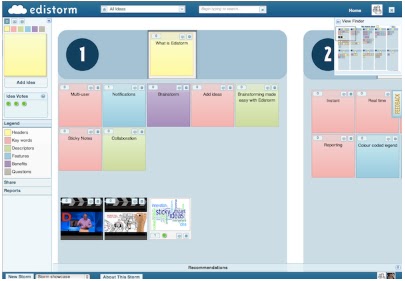
    Edistorm : real time brainstorming tool

    Edistorm is a great web2.0 tool for educators. It allows you to work on your ideas during a structured brainstorming and organize them into sticky notes for others to see . I rarely include paid web tools in this blog and when i do it is just because of the importance of the tool in education.Edistorm is one of these paid tools i decided to cover here because of the different utilities it offers to its users . It has a 30 day free trail in case you want to see how it works before you afford it .


    Some features of Edistorm

    Here are the main features that Edistorm offers to its users :
    • It is not free but it has a 30 day free trail period

    • It requires a sign up

    • It is very easy to use

    • It lets you brainstorm your ideas into a sticky note wall

    • You can you to organize your ideas in a real time interactive wall.

    • Each sticky note can have its own color and the users decide what the arrangement means to them.

    • Edistorm has a variety of bots including, thesaurus, rhyming, related words and a social media bot

    • Creating public or solo brainstorms is always free, while creating private invite only storms requires a subscription

    • You can invite a number of users to your storms to view and edit them

    How can i get started using Edistorm ?

    To learn how to use Edistorm , here is a video tutorial i have picked up from their site


    That’s it about Edistorm : Real Time Brainstorming tool .
    You might also like :

    Linoit : Free awesome Stickies maker

    Linoit is a free sticky and canvas service that does not require anything but a web  browser . Linoit is pretty much like Wallwisher , the sticky note organizer i have talked about before in a post entitled Wallwisher : a Great Digital Online Notice Board. If you know how to use Wallwisher then you would not have any issues with Linoit but if you are not using Wallwisher then follow this step by step tutorial to learn about Linoit and how to use it .


    Some features of Linoit

    Here are the main features that Linoit offers to its users :
    • It is free to use but it also has a premium version with more options.

    • It is very simple to use

    • It has eye-catching interface

    • It requires a sign up

    • It allows you to post sticky notes whenever and wherever you want

    • It offers reminders on special events or deadlines , just set due dates on your stickies and Linoit does the rest

    • You can attach files to stickies and share them with friends and colleagues

    • You can embed in a free layout your videos , pictures and many more

    • It is mobile enhanced so that you can do the same things you do on your computer but this time on your iPhone or iPad.

    • You can create a group and start sharing your ideas and plans with its members

    • You can email your stickies to others using email service

    How can i get started using Linoit ?

    Head over to Lioint main page
    1. Sign up for a free account

    2. Once you are there choose a canvas by drag and drop

    3. Start customizing it and adding data to it , use the authoring tool under it to do so .


    Watch this videos to learn more about Linoit
     

    Applications of Linoit in education

    When i was framing my ideas about how to use Linoit in education i stumbled upon this video which says it all . Watch the video to learn how Linoit can be very useful in our classrooms .


    That’s it about Linoit : Free Awesome Stickies  maker.
    You might also like :

    corkboard: discover and share anything online

    Corkboard is a cool web2.0 tool for educators . It allows you to create corkboards to help you organize your postings . For instance you can create ‘Books I Read’ Corkboard and put all of your books related postings in there . It is very handy and practical and above all it is free to use . It looks like Wallwisher and Dropbox but simpler than them all .


    Some features of Corkboard

    Here is a list of all the features that Corkboard offers to its users :
    • It is free

    • It is very easy to use

    • It has an intuitive interface

    • It allows you to create and organize your corkboards very easily

    • You can invite your facebook or corkboard contacts to view or edit your postings

    • You can add comments to your corkboards

    • You can also attach image to your corkboard

    • You can build your community of people sharing the same interests

    • You can also share what you post on your facebook wall

    • You can subscribe to corkboards that interest you

    • You can check postings of other users

    • You can message your friends and send them postings

    • It has a mobile version for mobile device  users

    How can i get started using Corkboard ?

    Head over to Corkboard main page
    1. Sign in for a free account or use your facebook account to open one

    2. Click on Add a Corkboard to create your corkboard file

    3. Give it a name

    4. Attach an image to it

    5. Click on add postings

    6. Choose the kind of posting you want to make :

    For example i will choose a note

    Fill in the title, description , URL, and attach a photo
    Choose you privacy settings
    Click on create postings

    Applications of Corkboard in education

    Corkboard is a great tool for educators . Teachers can use it to create their own corkboards and share it with their students . They can for example create a classroom corkboard where to include all the links , lesson plans , events , images of relevant interest to students and then invite them to view it . Students too can use it to collaborate with each other on specific corkboards or join other students from around the world and start interacting with them .
    That’s it about Corkboard : Discover and Share Anything Online.
    You might also like :

    Friday, April 29, 2011

    Wipee List : Easily Control and Manage Your To do Tasks

    Wipee List is another to do list tool .It works like Todoist and Ta-dalist i have covered in earlier posts. Wipee List is very simple , handy and easy to use that is why i added it to my To Do List Tools i am assembling here .


    Some features of Wipee List

    Here is a list of the main features that Wipee List offers to its users :
    • It is free

    • It requires a sign up but it is very instant

    • It has a great looking interface

    • It lets you create awesome to do lists

    • It has a sophisticated authoring tool

    • It lets you add your reminders

    • You can share your lists with others via a generated URL

    How can i get started using Wipee List ?

    Head over to Wipee Lst and sign up for your free account
    Click on add an item
    type in your item
    use Quick reminders sticky note if your item has a priority
    Visit Wipee List to learn more

    Applications of Wipee List in education

    Again just like what we said for Ta-dalist and Todoist , Wipee List can also be used by educators to take notes and organize their online work . I would love that you introduce these tools to your students, K-12 ones i mean, and show them how they can organize their notes and to do lists  . It is about time that our students get to know these educative technological tools to help them with their learning and better prepare them for the 21st century work environment .
    That’s it about Wipee List : Easily Control and Manage Your To do Tasks .
    You might also like :

    Monday, April 25, 2011

    Primary Wall : Students Sticky Notes Wall

    Primary Wall is a great collaborative sticky note service .This tool is different from the other sticky notes applications in that it does not require any sign up . Primary Wall is created with elementary school students in mind .It allows users to organize their notes in such an easy way that no extra or advanced technology knowledge is needed . It is ideal for students and i would really recommend everyone of you who has not tired it to do so .
    primarywall

    How can i get started using Primary Wall ?

    Head over to Primary Wall main page
    Click on create new wall
    primarywall1
    Watch this tutorial video to learn more

    Applications of Primary Wall in education

    Primary Wall is a very important tool in education . we can use it to collect and organize sticky notes that are relevant to our students learning needs and then invite them to visit the URL of the wall we have created and let them start editing it . They can click on”add notes” or double click on the wall to start writing their own notes .
    That’s it about Primary Wall : Students Sticky Notes Wall.

    You might also like :

    Thursday, April 7, 2011

    Wallwisher: a great digital online notice board

    Wallwisher is an online notice board maker .It is one of the organizational tools i like the most . It is free and very simple to use . With Wallwisher notes have never been this easy .


    Some features of Wallwisher

    Here are the main features that Wallwisher offers to its users :
    • It is completely free
    • It does require a quick sign up
    • It is very simple and has a user-friendly interface
    • It allows you to use images,music , text , video
    • You can make your wall private or public
    • You can allow others to add to your notes too
    • It provides a wide range of nice themes
    • You can share your wall with the others

    How can i get started using Wallwisher ?

    First  head over to Wallwisher main page
    now watch this tutorial video to learn more

    Applications of Wallwisher in education

    Wallwisher is great for educators . teachers can use it to organize their notes and share them with their students . Students can  use it to collaborate on the same projects . It is a great tool for enhancing team work and digital wisdom we badly need for the 21st century students .
    That’s it about Wallwisher : A Great Digital Onl;ine Notice Board

    You might also like :


    Here are all the educative web2.0 tools i have covered so far in this blog .I have organized them into different categories , select the category you want and explore the tools

    1. Presentation/Mapping Tools
    2. Organizing / Collaborative Tools
    3. Google / ResearchTools
    4. Audio/Image/Music Tools
    5. Converting/Writing/Storytelling Tools
    6. Video Tools
    7. Teacher Resources
    8. Best of The Rest

    Sunday, April 3, 2011

    Pearltrees: discover, organize and share your stuff easily

    Pearltrees is a fantastic web2.0 tool . It is “ the social curation community , a place where you can organize , discover and share the staf you like on the web ‘.It looks like Livebinders and symbalooedu but does a greater job than them . I tried it and i really love it and decided to share it with you because i am sure you will love it too once you try it .
    watch this video to have an idea of what Pearltress is all about


    Some features of Pearltrees

    Here are the main things that set Pearltrees apart from other organizing tools out there :
    • It is completely free
    • You don't have to create an account to browse or search pearltrees. But only registered users can create new pearls and pearltrees
    • lets you share any part of you're the Pearltrees you've curated on Facebook, Twitter, directly within Pearltrees, using a permalink or even by embedding content in another web site.
    • Pearltrees also lets you discover a web organized by others
    • Pearltrees has extensions for Firefox, Chrome and Internet explorer that make it easy to create pearls while you are browsing the web
    • you can import easily your delicious bookmarks in your account.

    How can i get started using Pearltrees

    Log on to Pearltrees main page and open your account there , it is free and quick
    Now watch this awesome video tutorial to learn how to use Pearltress

    Application of Pearltrees in education

    Nobody would ever judge the importance of Pearltrees in education . I t a great tool to help students organize their pearls into interactive platforms and share them with their colleagues . It will enhance in them the sense of creativity and collaboration which are the pillars of a sound learning . what are you waiting , go ahead and give it a try and introduce it to your students .

    Here are other Organizing tools you might like :

    Here are all the educative web2.0 tools i have covered so far in this blog .I have organized them into different categories , select the category you want and explore the tools

    1. Presentation/Mapping Tools
    2. Organizing / Collaborative Tools
    3. Google / ResearchTools
    4. Audio/Image/Music Tools
    5. Converting/Writing/Storytelling Tools
    6. Video Tools
    7. Teacher Resources
    8. Best of The Rest