Today's Meet is a great web tool that allows users to create private rooms where to collaborate and work together. This is basically a collaborative workspace for teachers and their students. Today's Meet resembles Typewith.me and TitanPad in that they are all open, free and easy to use.
Today's Meet can be used by teachers to create backchannels and interact more with their students. It is free and easy to use. It does not require any registration or software download. Just head over to its main page and type in the name of your room and select its life span ranging from one hour to one year and then click on ' create my room'.
Today's Meet can be used by students to do several things such as :
Taking notes
Giving feedback after a lesson or lecture
Collaborative work ona project
Create discussions between different students
Maintain conversations with the teacher
Today;s Meet can be a great educational tool in the hands of both teachers and students if used properly. Give it a try .
Watch this tutorial I made to see Today;s Meet in action
Corkboard is a great web tool. It allows its users to create as many notes as they want and save them online for a later access. It lookls like Wall Wisher the other organizing tool we have covered here earlier. Corkboard is very easy to use and does not require any registration or software dowanload.
To start using Corkboard you need to head over to its main page. Click on " create one now" button and you will be directed to the platform where to store your notes. Once there just click on any empty space and a small box will pop up where you can start filling it with your data. You can also use images by pasting their URLs there. There is an editing bar above the box that you can use to select the colour and do some editing to your notes.
This service is free but there is also a premium version with $4.99 a month which has far more features than the free one. It can for instance allow users to have up to five boards each with custom settings and password protection and many more. Anyway for us the free version is enough.
When you finsih writing your notes you can use the generated URL to shafre them with your friends or simply bookmark the page for you to access later on.
Skype in Education is a website created by the popular voice service Skype. It is designed specifically to meet teachers and students needs. This is basically a free global community of educators exchanging help and resources between each others in such an open way that any teacher can join in instantly. If you still have not heard about Skype in Education then let me take you through some of its features very quickly.
First off, to start using this service you need to open an account with skype, it is very easy and simple. Once logged in you will then start browsing through its various features. Click on :
1-Teachers
This is a directory filled with teachers that are willing to connect and get to know other teachers using Skype. You can use the search bar to look for teachers based on key words, language, and ages taught.
2- Projects
This is a section featuring all the projects listed in Skype in Education. You can also use the search functionality to look for and find projects .
3-Collections This is mainly a showcase of exceptional Skype in the classroom projects from around the globe.
4- Resources
This is a kind of library of resources that users have provided. You can find links, videos,tips, and articles and you can also add you resource. Use the search bar to filter resources and find what you want.
Advantages of Skype in Education
Skype in Education can be of great help to our students :
It can broaden their cultural knowledge and introduce them to new ways of seeing the world especially when you connect your class to a class in another part of the world using the cultural exchange feature
It can help language students speak fluently via maintaining live conversations with native speakers from all around the globe.
Students and teachers can access a wide range of educational resources in the library section.
Teachers can connect with other teachers from all around the globe and create work groups and help each others.
Wunderkit is a free collaborative workspace. This is a website that offers an open space for users to collabortae on projects and work they do. Wnuderkit is a great educational tool for both students and teachers and that is why I included it here after all. It has two versio oe is free which is the one we want to use and the other is paid for and has extra features that we do not neccessarily need in education.
Wunderkit requires a registrations. Once logged in users can then start creating their own workspace and name it before inviting others via Facebook and Twitter to join it.Any workspace created can either be open to public or just private so that only you and your members can see it.
Wunderkit has also a social part where users can also add comments, notes, like status updates and start discussions. Inside a workspace there are three built-in apps and each one of them will help you organize a different aspect of your project in a truly simple way. No need to install anything they are ready for use.
Titan Pad is a great web tool for educators. It provides a free collaborative workspace for users. It is based on EtherPad set up to enable users to work on their documents in real time. This is similar to Type with Me that I have covered earlier. These collaborative tools do not require any sign up and they are ready to use as soons as you are on their homepage.
Just head over to Titan Pad and click on create a Public Pad. Once created you can then share the URL of this pad wth your friends and people you want work with. There is also a chat window to talk to your colleagues while working on documents.
I do recommend this tool to teachers and students. It is really great.
Collaborative platforms are among those urgent digital tools that our students need to be familiar with. They are a great source of motivation, creativity and interaction. Sometimes we might under estimate what our learners can do but when they are given the proper tools and enough margin of movement they can really amaze us. Below is a list of three free collaborative tools to begin with. You can use them with your students in the classroom.
Thinkbinder is a free collabortive platfrom where students can easily create study groups. The website also features an open space or what is called a whiteboard where learners can work collaboratively together in solving problems and sharing sketches. Using Thinkbinder , students will be able to chat with each other, share links and resources, share videos and presentations and many more.
Dweeber is another collaborative platform that is designed to help students work on their homework. This website requires a free sign up and once students are logged in then they can instantly start building up their community of learners . There is a whiteboard for learners to work and collaborate on doing home work.
Scribblar is an online meeting platform. It is like the previuos tools for it allows its users to work collaboratively using a whiteboard. It also provides tools for learners to create text, draw lines and add images. Scribblar supports PDF files and allows students to upload PDFs with up to 5 pages.
In an anwser to the emails I have been recieving lately from teachers asking for free tools to organize and schedule their meetings , the following article will helpfully provide some of these tools. Just go ahead and compare them and you will probably find the one you feel at ease working with. I can not say which one is the best for they are all great and they more or less perform the same job.
Wiggio makes group work much more easier as its easy and straightforward design provides everything you need to work productively in your groups. It is simple to use and has a very nice and flexible interface that makes it easy for students, parents, and teachers alike.
It is a tool for scheduling meetings. If you are planning a meeting with different people and you don't want to impose your opinion on them as for the timing of that meeting then use Doodle to make a poll and invite your group members to vote for an appropriate time when they can all meet. It offers a democratic way for scheduling meetings
this is another free tool that allows its users to create online sing up forms and volunteer scheduling. It does not require any registration or software installation. Just go ahead and give it a try.
Sign App Now is a great application that lets users create simple and easy sign up sheets. It has two versions one is free and one is premium with 5 dollars a month. I think the free version is enough for you and has the basics of making a sign up sheet.
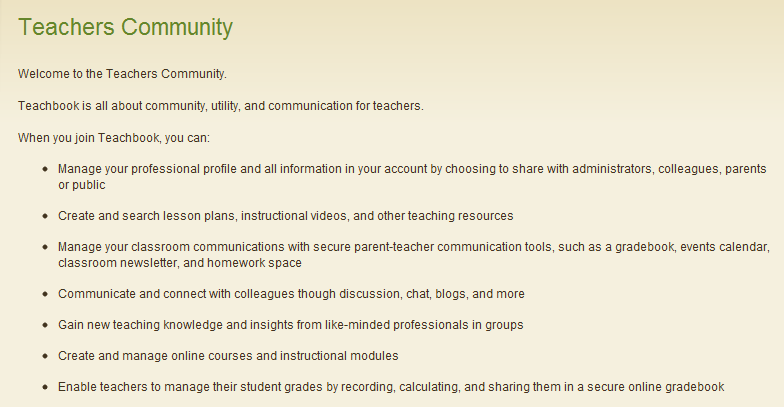
TeachBook is a professional community for educators. It is an online platform where teachers meet to discuss and share educational resources, videos , lesson plans and many more. I have just discovered it and it seems quite interesting. I have registered there and started interacting with other teachers. You can visit my profile to see how it looks.
TeachBook is completely free and requires only your registration. It has several tabs such as : Planbook, Forums, Videos, Events, Online courses, Lesson Plans , and news. Once you are registered you can then start uploading your own videos , comment and reply on other threads, submit your resources, create and manage online courses and instructional modules.
Some features of TeachBook
Here is a list of some of the features thatTeacheBook offers to its users:
It is free
It has a user friendly interface
It requires a registration
It lets you Create lesson plans and share them with others
Interact with other teachers
Create and join online groups
You can download and print lesson plans
Build your own courses and invite students to join
You can manage your grades, discussions, calendar and chats with the online course tools
Post in forum and reply to others' threads
You can search instructional videos under any subject or category. You can also add your own videos and share them with others.
Furthermore, here is a snapshot of what TeachBook can also offer you
I highly recommend TeachBook to teachers and educators. Head over to its main page and register for a free account.
ClassParrot is a website for teachers. It allows its users" to send text messages back and forth between students, parents, and teachers without revealing anybody's phone number". No need need to fret, your phone number will not be shown to anyone and you are the only person who can have access to it. This technology is highly educational, private, efficient, fast, and reliable.
Statistics have proved that teenagers or at least a huge number of them prefer text messaging to emails. This is generation Next and they depend wholly on mobile technology to do everything in their life. As educators we need to take advantage of this fact and start implementing this technology in our teaching. They will for sure like it and feel more comfortable working with it.
How can teachers use ClassParrot
Teachers can use ClassParrot to do many things such as :
create a quick polling and Q/A platform in and outside the classroom
Remind students of their upcoming exams and quizzes
Send homework updates and events reminders
Interact with parents and brief them about their kids learning and achievement
You might be asking yourself why using ClassParrot when teachers can just go ahead and ask for students' phone numbers and use them directly ? Well this is not a guarranted educational way plus there is no law to cover either you or students when you do so, ClassParrot has even clearly explained this point when it said
" Direct phone-to-phone text messaging presents legal risks for schools. Educators and students exchanging personal contact information create unavoidable liabilities that could potentially cause serious problems in an academic setting. Aside from being unsafe, traditional text messaging becomes cumbersome for educators because it is not intended for mass communication. ClassParrot addresses both of these issues. It’s safe: ClassParrot is a closed messaging system where there is never any need to share personal information directly with students. It’s convenient: ClassParrot is optimized for all educators – including teachers, administrators, coaches, program facilitators, mentors and tutors. The system facilitates the enrollment process (for all message recipients) so that educators can effortlessly text one student or an entire class." Taken from ClassParrot
Some features of Classparrot
Here is a list of some of the best features that ClassParrot offers to its users :
It is partly free. It offers 500 messages for free but you can invite your peers and get 200 messages more for each one you invited
Teachers can use any computer to send messages and students will get them right in their phones
Subscribed students and parents will be able to communicate with the teacher and answer back his messages
It enables students and teachers to talk freely and " without giving up their privacy or talking on liability"
How can I get started using ClassParrot ?
It is very easy to use. Teachers need to head over to ClassParrot main page and create their own class. When they are done a unique code and phone number will be generated for them. It is this code that they need to share with students and parents who, in their turn, will have to send a text message to that phone number to sign up for notifications for that class.
If you need to learn more about Classparrot then i I invite you to read their FAQ page.
SideVibe is a great website for educators. It allows its users to create “ web based online activities, pose questions or even host threaded discussions that can literally float over any Web page.”These activities are stored in the website database so that users can access them anytime they want using the Feedback Tools.
SideVibe is a great site for teachers. They can use it as a source of educational content where students learn in the appropriate context. Contextualization is one of the biggest favors of SideVibe and i think if used properly, it can be a huge incentive for learners to achieve more.
Some features of SideVibe
Here is a list of the main features that SideVibe offers to its users:
It has a free basic version with less features than the premium
It is easy to use
It has an intuitive interface
It allows users to create online activities
You can create as many vibes as possible
You can control who views your vibes
Teachers need to sign up for an account and give the entry code to up to 50 students ( free version)
You can create as many Courses and Topics as you like on the Course area of your SideVibe homepage.
It lets you printout nice PDF reports
How does Side Vibe work ?
Here are two video tutorials to show you how this tool can be used :
Here is the student companion tutorial Here are some links to help you learn what Student Companion is all about :
Here is a collection of web applications that collaborative in nature. They can help you create online groups and surveys, share, host, bookmark, and store web pages. You will find an easy and simple step by step tutorial accompanying each of these applications and in some cases a video illustration is also provided. Feel free to bookmark and share the list with your colleagues and friends.
ChannelME is a great web tool. It allows its users to browse a particular website simultaneously. Isn't this a great idea to be able to look at the same content of a web page with your friends in real time and even chat with each other using a chat facility for free. Browsing a webpage with your friends simultaneously can help you bridge that communication gap and let you enjoy the site collectively by pointing out to its positive and negative aspects.
Some features of ChannelME
Here is a list of the main features that ChannelME offers to its users:
It is free
It is simple to use
It has a user – friendly interface
It lets you browse the web with your friends simultaneously
You can even chat with each other while browsing the site
you and your friends leave notes on the site
You can drag and drop notes
How does ChannelME works ?
As i said before, ChannelME is very easy to use. Just provide it with the URL and it will automatically create a virtual browsing room for you and your friends. You can share the generated URL with your colleagues who, once they open it, they will be asked to provide a nickname which will allow them to chat with each others while browsing. Remember links on the web page are clickable
Applications of ChannelME in education
Educators will find ChannelME very useful in the sense that they can use it with their students to browse certain WebPages together. You can provide them with a URL of a page you find interesting for them and try to discover it together using the chat service. I think it is one of the best online collaborative tool for teachers. If you want to learn more about such tools and how to use them with your students you are invited to visit Educational Collaborative tools .
Doodle is a great web application. It is a tool for scheduling meetings. If you are planning a meeting with different people and you don't want to impose your opinion on them as for the timing of that meeting then use Doodle to make a poll and invite your group members to vote for an appropriate time when they can all meet. It offers a democratic way for scheduling meetings. I like this application and i know we can benefit from it in education and that’s why i am suggesting it to you here.
Some features of Doodle
Here are the main features that Doodle offers to its users
It is partly free , there are some features that are premium but the free services are enough for us in education
It does not require a sign up but still having an account there is the best way to benefit from its features.
It allows you to schedule events and make choices
If you are registered you can keep track of all the polls you have made
You can connect your calendar to Doodle and start using its interface to answer meeting requests
You can use the”meet me” feature to let your friends and colleagues know when you are available
You can share your scheduled events with your contact on Doodle
It offers both the mobile Web app and a native App for the iPhone and Android
How can i get started using Doodle ?
You need to log to Doodle main page and sign up for a free account watch this video tutorial to learn more about how to use it
Applications of Doodle in Education
As i mentioned earlier Doodle can be a very useful tool for us in education. We can use it to schedule meeting time with our colleagues in the same school or anywhere else. School team can also use it to organize their own school related meetings . That’s it about Doodle- Easy Group Scheduling tool.
Search Team is a cool website for educators. It allows its users to search in small teams and collaborate to find the best search results. It is a collaborative tool that we can use with our students. Searching the web in such a way has never been this easy. The purpose is to enhance a sense of collaboration and team work for our students .
Some features of Search Team
Here are the main features that Search Team offers to its users:
It is completely free to use
It has very simple and easy to use
It has such an intuitive interface
It requires a sign up but it is quick or you can log in using your face book , LinkedIn account or other services
It allows you to search the web more efficiently
It lets you save and organize results
It allows you to collaborate with your friends or colleagues in real time
How can i get started using Search Team ?
Head over to Search Team main page and sign up for a free account Now watch these short videos to learn how to use this service.
Applications of Search Team in education
As i said earlier , Search Team is a great collaborative service offered for free. Students can use it when they are working on their search projects, home work assignments, and classroom projects. They can collaborate in real time and refine their searches and avoid duplicate content or references when submitting their papers. That’s it about Search Team: Collaborate and search the web in small teams. You might also like:
Strike is a great ‘to do list’ making tool .It is very simple and easy to use . I am adding this application to the list i am making here about To Do List tools we can use in education . I have already covered some tools like : Squareleaf , Wipee List, Ta-dalist, Todoist . All of these tools can work perfectly well in education .
Some features of Strike
Strike offers several features and services to its users . Here are some of them :
It is free
it requires a sign up but it is quick
It has a user friendly interface
It lets you create to do lists and store them online
It offers several designs , backgrounds and themes for your lists
You can share your lists via a generated URL
Applications of Strike App in education
If you liked this tool then why not try it out with your students in the classroom . Show them how they can use it and make to do lists for them and let them track homework and assignments just from one platform. That’s it about Strike App : Easy Collaborative Task List Making Tool . You might also like :
Study Boost is a great website for students . It allows them to collaboratively study using text messaging and instant messaging . It also enables them to keep their learning materials fresh even outside the classroom . Study Boost offers a new way for students to interactively learn on the go .
Some features of Study Boost
Here are the main features that Study Boost offers to its users ;
It is completely free
It allows you to study using on mobile device or on favorite social media usinf instant messaging and sms
It supports several networks such as ;
1. SMS 2. Facebook Chat 3. Yahoo Messenger 4. Microsoft Live (MSN) 5. Google Chat 6. Jabber
You can use your Google, twitter , or facebook account to log in
You can share batches you create with your friends and collaborate on others
It les you add questions to your batches
You can search for batches created by your friends or classmates
How can I get started using Study Boost ?
Go over to Study Boost and sign in for a free account or use other accounts to log in Watch this Tutorial video to learn more
I hope you would consider stopping by Study Boost and give it a try . That’s all about Study Boost ; Learn Through Instant Text Messaging .
Here are all the educative web2.0 tools i have covered so far in this blog .I have organized them into different categories , select the category you want and explore the tools
Thinklinkr is one of the best organizational web2.0 tool out there . It allows users to organize information in outlines . It can also be used to run meetings , start brainstorming and energize lectures .
Some features of Thinklinkr
Thinklinkr provides a different set of features to its users , here are some of them :
It is completely free
It is very simple to use
It has a fast , simple and innovative interface
It allows you to work collaboratively
you can chat while you are working
It allows you to create polished presentations and good looking outlines with different sub headings
you can include URLs or website you like to these sub headings
you can invite other people to work with you on presentations both as editors or just viewers
It provides different options to publish it either as URL or link
You can also embed your work in your wiki , blog or website
How can i get started using Thinklinkr ?
To start using Thinkilinkr head over to its main page and sign up for a free account once you are signed in then do the following : watch the tutorial video
Applications of Thinklinkr
Thinklinkr can be used in education in different ways :
It can be used by students for group note taking with every participant collaborating simultaneously on building the notes
It can also be used to revise previous lessons
students can use it to organize their thoughts on a topic in the form of outlines
It is an effective way to enhance students writing skills
It can also be used as a brainstorming tool to introduce new ideas and concepts in the classroom
That’s it about Thinklinkr : a Handy Tool to Create and Share Outlines
You might also like to check these organizational tools :
Here are all the educative web2.0 tools i have covered so far in this blog .I have organized them into different categories , select the category you want and explore the tools :
Mind42 is a great collaborative mind mapping web2.0 tool . It is a browser-based online mind mappingapplication that allows you to keep track of all your ideas and create easy mind maps .It does not require any download or installation software , just log to your browser and launch the application .
Some features of Mind42
here some of the features that Mind42 offers to its users :
It is completely free
it is very simple to use
It requires a sign up
It helps you create easy mind nodes instantly
It allows you to add images, links and notes to your mind maps
It lets you invite others to collaborate with you on the edition of your mind map in real time
How can i get started using Mind42
Log on to Mind42 main page and sign up for a free account once signed in you can start working on your mind map just as shown in the instruction of this tutorial video
Applications of Mind42 in education
Mind42 is a good tool for students . They can use it to create engaging mind maps enriched with multimedia clips . What i really like about this application is the possibility that offers for collaboration so students can be divided into groups and assigned tasks to work on together . They can collaborate with each other to create diagrams and share them with other groups . This is great in enhancing team work that our students are in badly need for . That’s it about Mind42 :a good Collaborative mind mapping tool
Here are some similar mind mapping tools you might like :
Here are all the educative web2.0 tools i have covered so far in this blog .I have organized them into different categories , select the category you want and explore the tools :
Yaptime is a great web2.0 tool . It is prefect for creating private groups `where only invited members can share and plan in private`. As Robert Kapela has said , It is very hard now to find a social network that offers reasonable measures of privacy and even Facebook has grown so much impersonal to the point that you risk the disclosure of your private data there . Yaptime has been created with this mind , allowing people to share and collaborate in private groups freely and with no privacy infringement . As educators , Privacy counts a lot and Yaptime is one of the safest place we really need for our students .
Some features fo Yaptime
Yaptime has quite many interesting features that educators can benefit from , here are some of them :
It is free
It is easy and simple to use
It has a very interactive and user friendly interface
It requires a sign up but it is quick , you can also sign in using your Facebook or Twitter account
It allows users to create private groups
you can embed photos , videos , files ,calendars polls and surveys into your group
You can also interact with your group members through messaging
It is secure
It lets you share and organize photos and videos, plan events using group calendars, and have meaningful conversations.
How can i get started using Yaptime
Head over to Yaptime main page and sign up for a free account or use your Facebook or Twitter account Once you are logged in click on `add a room ` and give it a name and description and hit `create a room;
Now that your group is created you do the following : Invite members you can either use their email addresses or use the ones you have in your : Gmail , Yahoo , AOL , or Hotmail
Post a photo
Post a message to the group
Post a video
Post an event Post a survey
Post a file
Add a group image click on`add group image on the right hand side
Applications of Yaptime in education
Yaptime is one of the most important tools to be used with your students . It provides all the privacy and security that a classroom needs . You can use it to create a group of your class and invite your students to join in and start sharing lessons , educative videos , important files and even assignments and homework . You can also use it to communicate with your students and keep them updated about their school events or any other event you deem important for them to catch up with . I hope you would give it a try it is really so much useful . That,s it about Yaptime : The best Place to Share , Organize , and Collaborate Using Private Groups .
Here are some other similar Collaborative tools you might need to check out :
Here are all the educative web2.0 tools i have covered so far in this blog .I have organized them into different categories , select the category you want and explore the tools :
Engrade is one of the best online web2.0 tools in education . It is the number one online gradebook in class management system with more than 2,410,506 members . Engrade is completely free and is a great way to post class information for students and parents .
Some features of Engrade
The following is a list of features that Engrade offers to its users :
It is completely free
it is secure and private
It requires a sign up but it is quick and easy
It allows you to record grades and attendance , schedule assignments and build classroom materials like : lessons , quizzes , and flashcards
It lets you imprint a variety of grade reports
It allows you to create and share wikis , lessons , flashcards , and online quizzes
You can also use it to embed videos and upload documents
How can i get started using Engrade ?
Visit Engrade front page and click on sign up Create a teacher account Now that your account has been created you need to set up your first class
Next you choose the grading scale for this class . If you select manual option , Engrade will not automatically calculate the students grades and you have to enter them but if you select 0-100 Engrade will automatically calculate them based on their percentage .If you want to customize your students grading scale click on custom button
Engrade allows you to put your assignments into categories and weight them .
it also allows you to sort students in the grade book by their last name , id number or class percentage
To add an assignment simply click new assignment
then enter its name , the points possible , select a category , choose a date , and add a description or attachment .Under the student score , you can enter the scores of your students on this assignment .
To create a class , scroll over classes button on the top bar and click on create a new class and do the same procedure you did previously .
Engrade is a great web2.0 tool in education . It has been created mainly for teachers and students . The following are a set of ideas on how we can use Engrade in education as has been proposed by Engrade themselves : We can use Engrade to :
create a customized grading scale to store students scores
engage students in online discussions
assign homework and assignments for students
safely and privately message students and parents
build online class wikis for your classroom
Post events , reminders and lessons online for your class
create flash cards to help students with their learning
Track daily attendance
deliver online quizzes to your students and let Engrade automatically calculate the scores for you to save you time .
that’s it about Engrade : The best online Gradebook for Educators I hope you liked this post . To learn more about other organizational and collaborative tools you might need in your classroom , just check the '” Organizing / Collaborative tools “ tab on top of this page . You might also like :